Arrange your table: styles, order and groups
A table you use every day should look the way you think about money. This release lets each person pick how the envelopes sit on their own screen, lets the household put them in the order it wants, and lets you sort them into groups such as Bills, Kids or Fun. Your table style is just for you. The order and the groups are the same for everyone at the table.
What's new
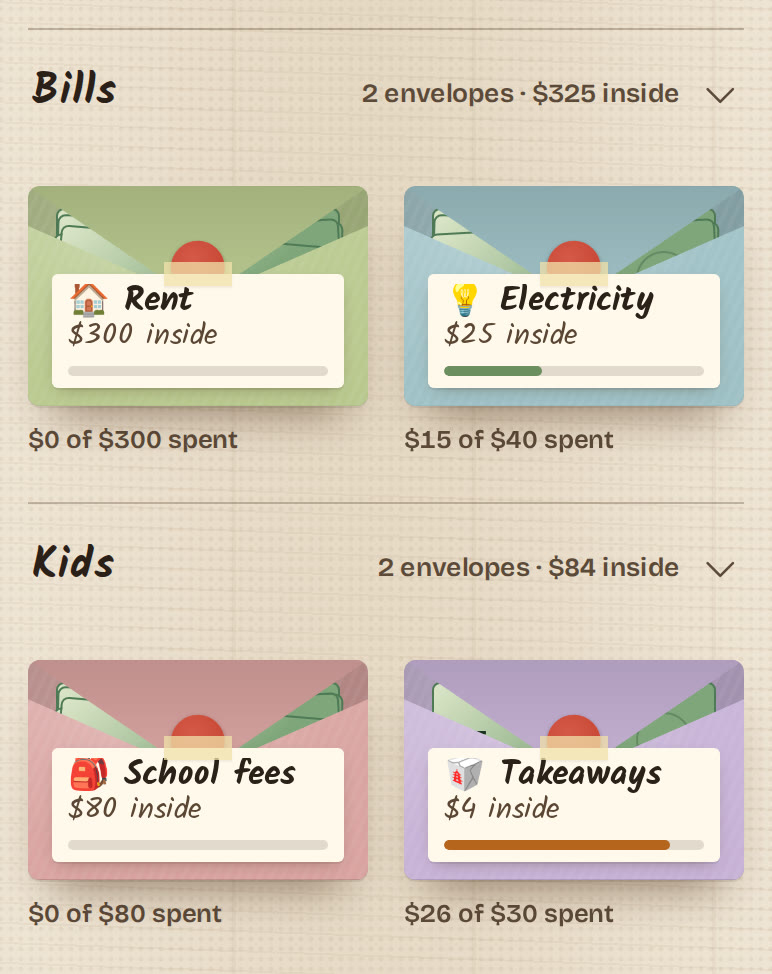
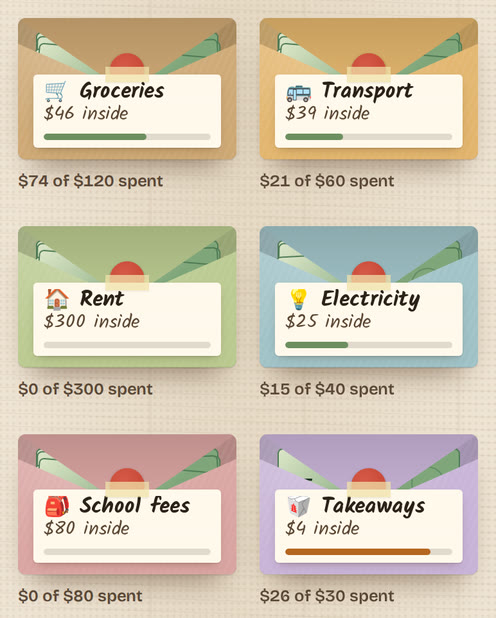
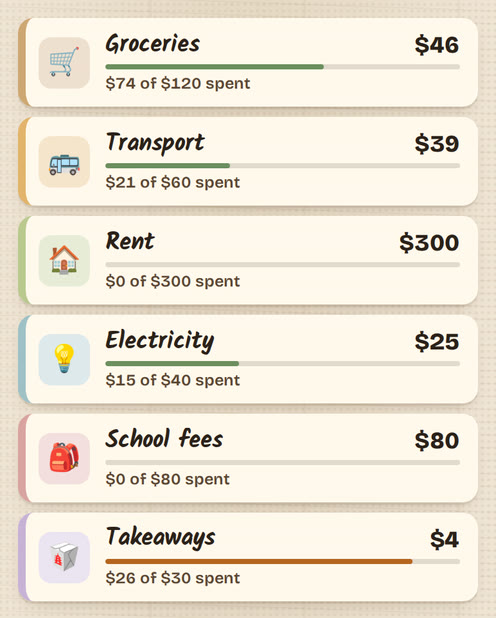
- Four table styles, just for you. Scattered (tossed about, as before), Neat (lined up straight), List (one compact row per envelope) and Groups (a section per group). Each person picks their own, and it follows you into every household you open.
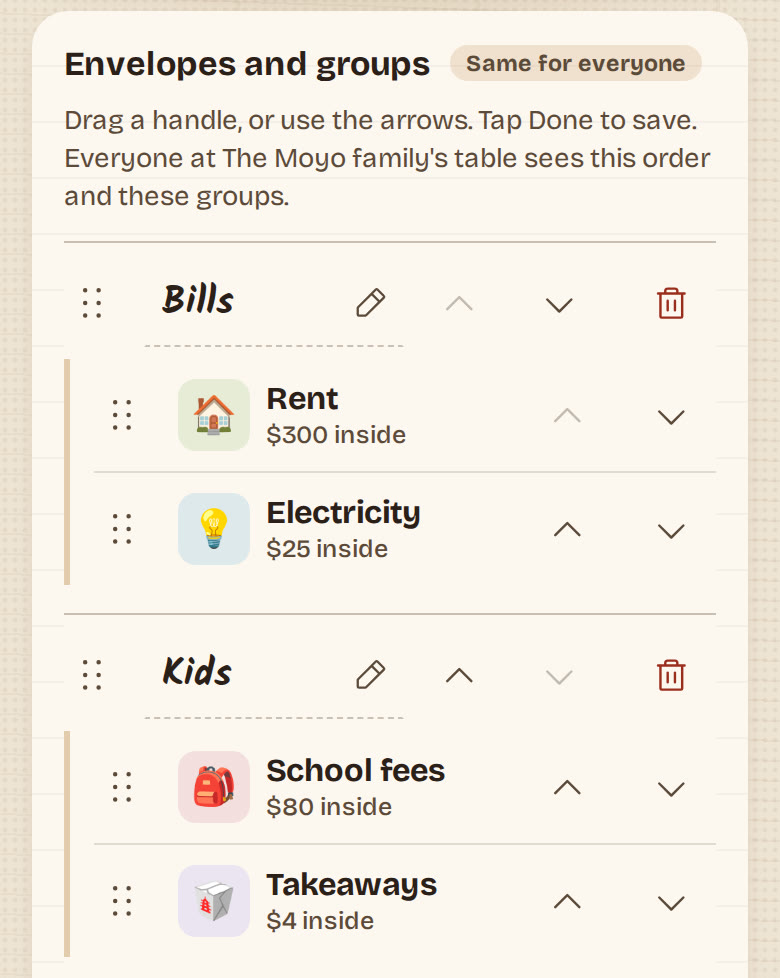
- The Arrange screen. An "Arrange" button at the top of the table opens a list of your envelopes. Drag a handle, or use the up and down arrows, then tap Done. Everyone's open table refreshes with the new order.
- Envelope groups. Make named groups on the Arrange screen and drag envelopes into them. In the Groups style, each group is its own section with its name, how many envelopes it holds and the cash inside. Tap a section's header to fold it away.
- Group on the envelope form. Once your household has groups, the form for a new or edited envelope has a Group choice too.
How to use it
- To change your style, open Settings and pick one under "Table style". It saves as soon as you tap it. The same picker is at the top of the Arrange screen.
- To change the order, tap "Arrange" at the top of the table. Drag an envelope by its handle, or tap its arrows, then tap "Done". You go back to the table with "Saved the order."
- To make a group, type a name next to "New group" on the Arrange screen and tap "New group". Drag envelopes into it, then tap "Done".
- To rename a group, edit its name on the Arrange screen. To delete one, tap its bin icon and confirm.
- Pick the Groups style to see your table in sections.
Good to know
- Scattered stays the default, so nobody's table changed unless they chose to change it.
- The piggy bank and your stamps stay below the envelopes in every style.
- Deleting a group never deletes an envelope. Its envelopes move to "Other", which is always the last section.
- Nothing is saved until you tap Done. If you try to leave with unsaved changes, Dura asks "Leave without saving?".
- If someone adds or archives an envelope while you are arranging, Dura shows "The envelopes changed. Here's the latest." and saves nothing, so you can arrange again.
- Folded sections are remembered on that phone only.
- The Arrange button shows once you have two or more envelopes.
Go deeper
- Getting started with Dura: changing your envelopes after setup.
- The dura command line:
dura envelopes orderanddura groupsfor agents.